
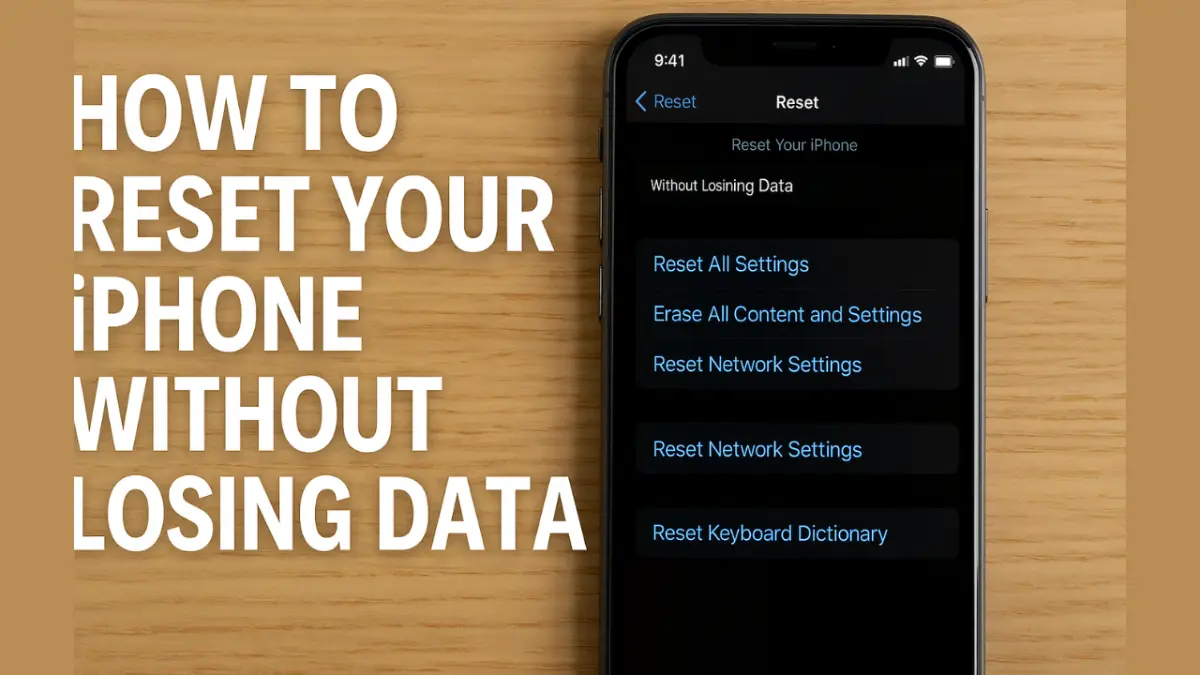
How to Reset iPhone Without Losing Data (Step-by-Step Guide)
How to Reset iPhone? Resetting your iPhone doesn’t always mean saying goodbye to your photos, messages, apps, and settings. Whether you’re troubleshooting a glitch, improving performance, or preparing your device for a fresh start, it’s totally possible to reset your iPhone without losing important data.
This guide walks you through safe and effective ways to reset your iPhone while keeping your content intact. Designed especially for U.S.-based users, this method works on all recent iPhone models, including iPhone 15, 14, 13, SE, and even iPads.
Also Read: How to Remove Hard Water Stains from Shower Glass
Why You Might Want to Reset Your iPhone

Sometimes, your iPhone starts acting up — slow performance, apps crashing, or strange glitches. Resetting the device often clears out temporary bugs or settings that might be causing trouble.
Here are common reasons to reset your iPhone:
- Your iPhone is lagging or freezing
- You’re facing software glitches
- You want to troubleshoot before contacting Apple support
- You’re switching phones and need a clean restart — but want to keep your data
Good news? You don’t need to erase everything to get a fresh start.
What Does “Reset” Really Mean?
There are two types of resets:
- Soft Reset – Basically a restart. No data is deleted.
- Factory Reset (with data retained) – You reset settings and system files without deleting your personal data, thanks to backups and sync options.
In this article, we’ll focus on resetting your iPhone without losing your data — whether through iCloud, iTunes/Finder, or direct device settings.
Also Read: How to Find Hidden Gems in Popular Travel Destinations, 2025 Guide
Step-by-Step: How to Reset iPhone Without Losing Data

Step 1: Back Up Your iPhone First
Before anything else, ensure your iPhone is backed up. This way, even if something goes wrong, your data is safe.
Option A: Back Up via iCloud
- Go to Settings > tap your Apple ID > iCloud
- Tap iCloud Backup
- Tap Back Up Now
Make sure you’re connected to Wi-Fi and your device has enough battery.
Option B: Back Up via iTunes (Windows/macOS Mojave) or Finder (macOS Catalina+)

- Connect your iPhone to your computer.
- Open iTunes or Finder.
- Select your device.
- Under “Backups”, choose Back up to this computer.
- Click Back Up Now.
Step 2: Use Reset Settings (Without Data Loss)

Once your data is safely backed up, you can reset settings without touching your files.
- Go to Settings > General > Transfer or Reset iPhone
- Tap Reset
- Choose Reset All Settings
This option won’t delete your photos, apps, or files. It only resets system settings like Wi-Fi passwords, wallpapers, privacy preferences, etc.
Also Read: How to Make a Mocha Coffee at Home Like a Barista (2025 Guide)
Step 3: Restore from Backup (If You Do a Factory Reset)

If you do need to erase your iPhone completely for any reason, you can still restore your data during the setup process.
- After resetting, your iPhone will restart.
- Follow the on-screen instructions.
- Choose Restore from iCloud Backup or Restore from Mac/PC.
Your apps, messages, contacts, and photos will be back in no time.
Pro Tips to Avoid Data Loss
Before you reset your iPhone, it’s important to take a few extra precautions to ensure a smooth experience and avoid losing anything important. Always double-check your iCloud backup status by going into Settings > [Your Name] > iCloud > iCloud Backup to confirm that the most recent backup is complete and up to date. If you use apps like WhatsApp, remember that it doesn’t automatically back up through iCloud unless you’ve enabled it within the app’s settings—so be sure to back up those chats separately if needed.
Also, if you plan to restore your iPhone using iTunes or Finder, make sure to turn off Find My iPhone, as Apple’s security features can block the process if it’s still active. And if you’re upgrading to a new iPhone, take advantage of Quick Start, which allows you to transfer all your data, settings, and apps wirelessly in just a few taps—making the switch easy and seamless.
Also Read: How to Manage Family Finances and Save for College, 8 Easy and Proven Steps
What You Shouldn’t Do
When resetting your iPhone, it’s crucial to avoid some common mistakes that can lead to unexpected data loss. One of the biggest blunders is tapping “Erase All Content and Settings” without first creating a proper backup—this action wipes everything from your device, and without a backup, there’s no way to recover your photos, messages, or apps. Another frequent issue is restoring from the wrong backup or Apple ID account, which can leave you missing important files or settings.
Interrupting the backup or restore process mid-way—due to low battery or poor internet—can also corrupt your data or leave the process incomplete. Lastly, many users assume their photos are safe simply because they use iCloud, but if iCloud Photos is turned off, your images may not actually be backed up. Always double-check your settings and backup status before making any major reset decisions.
When Should You Reset Your iPhone?

- Your iPhone won’t update properly
- You’re getting ready to sell or give away the device
- You’ve tried everything and bugs keep coming back
- Your iPhone feels unusually slow or laggy
Just remember: a reset doesn’t have to mean data loss.
Wrapping Up
Resetting your iPhone doesn’t have to be scary — especially if you follow the right steps. With a proper backup in place and smart settings reset, you can refresh your device and retain all your data without breaking a sweat.
Whether you’re troubleshooting, decluttering, or preparing for a new start, this guide ensures your memories, messages, and apps stay right where they belong — with you.
Also Read: How to Create an Effective Email Marketing Campaign, 2025 Guide
FAQs: How to Reset iPhone Without Losing Data
Q1. Will I lose photos if I reset my iPhone?
Not if you back up with iCloud Photos or manually back them up to a computer before the reset.
Q2. Does “Reset All Settings” delete everything?
No. It only erases system settings, not personal data, photos, or apps.
Q3. Can I reset my iPhone without a computer?
Yes, you can reset directly from the Settings app. Just make sure your backup is done via iCloud.
Q4. How long does the reset process take?
“Reset All Settings” takes just a few minutes. Full factory reset with restore might take 15–30 minutes depending on backup size.
Also Read:
